01
Open the panel
Activity Bar → the ❯ cx CX Composer icon → Extensions in Workspace shows up at the top of the sidebar.
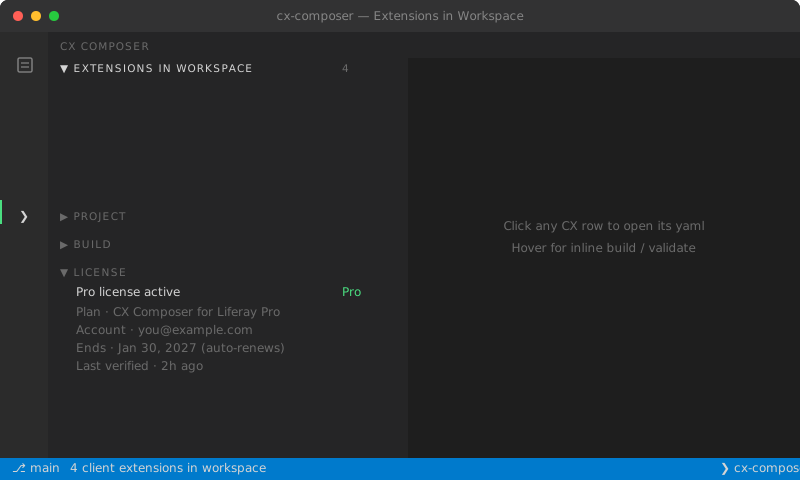
A sidebar tree lists every client-extension.yaml in the workspace with extension count, deploy status (built / stale / not built), and last modified. Click a row to jump to its yaml; hover for one-click build or validate. Auto-refreshes when you save or when a new .zip lands.
Activity Bar → the ❯ cx CX Composer icon → Extensions in Workspace shows up at the top of the sidebar.
Every client-extension.yaml in your workspace, grouped by folder. Multi-block manifests are counted per-extension.
● built (green) — zip newer than sources. ⚠ stale (amber) — sources newer than zip. ○ not built — no zip yet.
Selecting a row opens the yaml in the editor and reveals the folder in the Explorer.
Hover a row → build + validate icons appear on the right. One click, no context menu chase.
FileSystemWatcher on client-extension.yaml and build/*.zip → the view updates when you save or when Blade emits a new zip.